
ADODB Database Connection
These instructions will build an example program that connects to an Access database.
|
|
Download the code by clicking on the Zip file. |
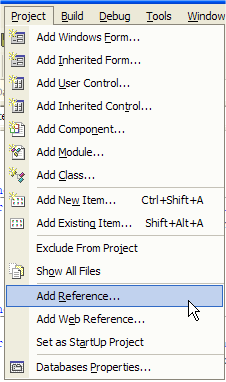
You must add a reference to be able to use ADO.Net. From the Project menu, select Add Reference.
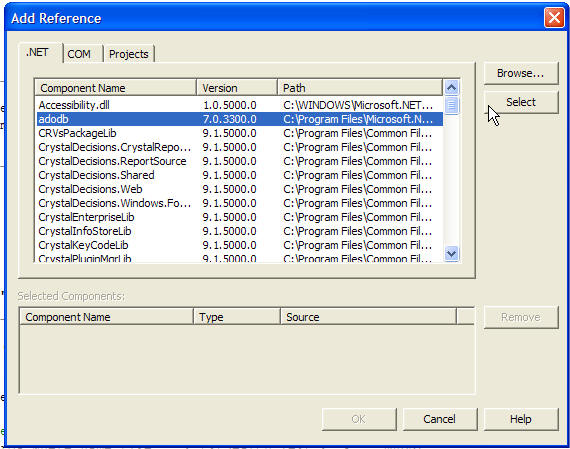
Select adodb from the list and click Select.
Here's the code from the program:
...
// create a
connection to the database
private ADODB.Connection myDB;
private void Form1_Load(object sender,
System.EventArgs e)
{
// connect to the database
myDB = new ADODB.Connection();
// just make sure your database filename is correct in this
next line, e.g., "db1.mdb"
string connectionString =
"Provider=Microsoft.Jet.OLEDB.4.0;Data Source=" + Application.StartupPath +
"/db1.mdb";
myDB.Open(connectionString, null, null, 0);
}
private void button1_Click(object sender, System.EventArgs e)
{
// create an empty set of records
ADODB.Recordset myRS = new ADODB.Recordset();
// select some records from the database, place them in the
recordset
myRS.Open("Select * from records", myDB,
ADODB.CursorTypeEnum.adOpenKeyset, ADODB.LockTypeEnum.adLockOptimistic, 0);
listBox1.Items.Clear();
// put all the records from the recordset into the listbox
while (!myRS.EOF)
{
listBox1.Items.Add(myRS.Fields["name"].Value);
myRS.MoveNext();
}
myRS.Close();
}
private void button2_Click(object sender, System.EventArgs e)
{
// you can run any SQL statement this way, e.g., insert,
delete, update records
string mySQL = "INSERT INTO records (Name, Phone) VALUES ('"
+ textBox1.Text + "', '" + textBox2.Text + "')";
object recordsAffected;
// run the actual command now
myDB.Execute(mySQL, out recordsAffected, 0);
}