Databases with ADO.Net - Example
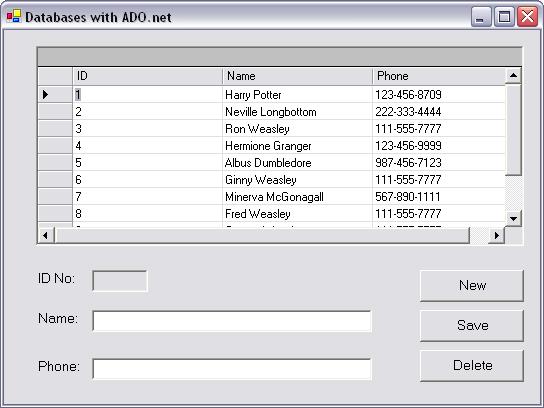
These instructions will build an example program that looks like this:
The new button creates an clears the fields for an empty record. The save button will save a new record or update the current record being viewed. The delete button will remove the current record being viewed. The data grid shows all the current records. This example shows you how to use ADO.Net with an Access database - including simple Select, Update, Insert and Delete statements.
 |
Download the code by clicking on the Zip file. |
Instructions for Creating the Example:
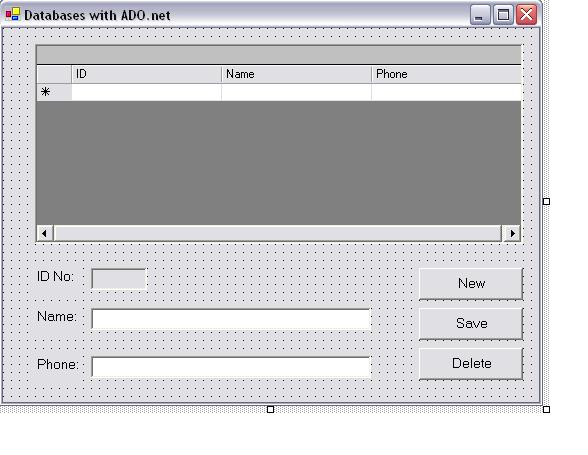
The textboxes are called txtID, txtName and txtPhone. The buttons are called cmdClear, cmdSave, and cmdDelete. The datagrid is called DGResults.
6. We need to reference System.Data and System.IO so that we can use ADO.Net and relative pathnames. Add two using statements to the top of your code:
using System.Data;
using System.IO;
7. In order to retrieve data from a database, we need what is called an OleDbDataAdapter. Go to Toolbox > Data and drag one onto your form. (If you don't see a Data tab, right-click on your toolbox and Show all Tabs)
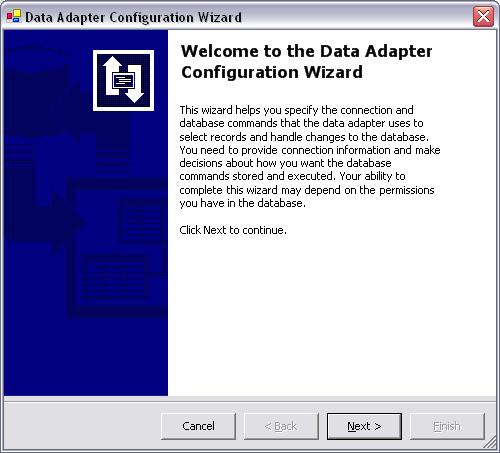
8. This will open the Data Adapter Configuration wizard. Hit Next.
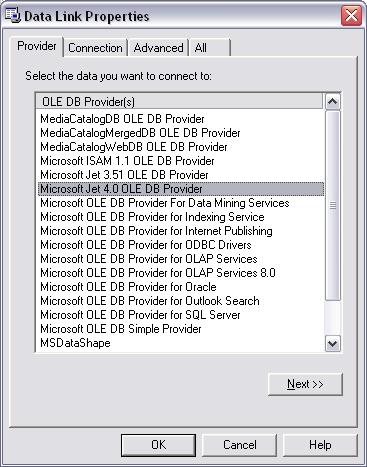
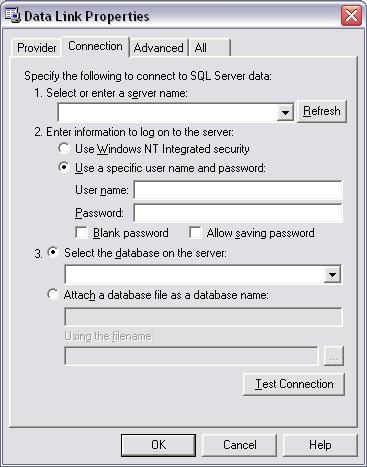
9. Select New Connection. This will pop up a properties window. Switch to the provider tab and select Microsoft Jet 4.0 OLE DB Provider. This is the data provider for Access. Hit Next>>.
10.
Select your database. Leave the rest blank. Test your connection. If it
works, hit OK. If not, double check your settings.
11. You will be returned to the wizard. Hit Next.
12. Select Use SQL statements (the default). Hit Next.
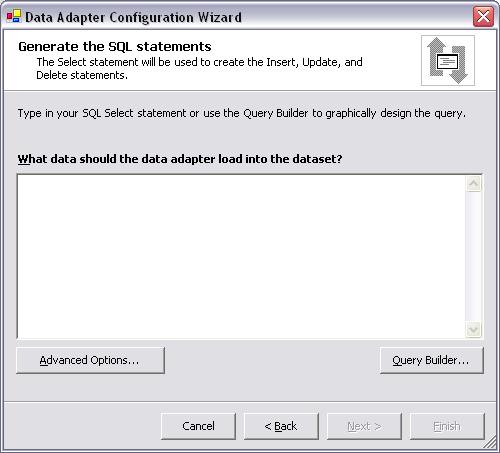
13. This screen lets you select what data will be initially loaded into the dataSet from the dataAdapter. Select QueryBuilder.
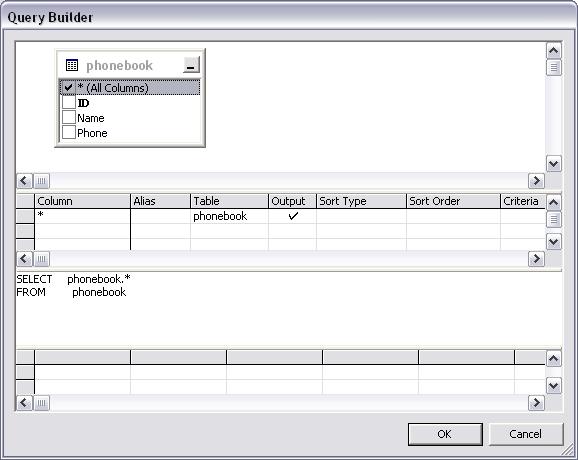
14. When the query builder opens, Add your phonebook table. Then
hit Close on the table window. The fields from phonebook will now be
available in the query builder. Check All Columns and hit OK.
15. When you are returned to the wizard, hit Next, then Finish.
You will be asked if you want to save the password in your source code. Select
Don't include password.
16. Now you will be retuned to your form's design window. You should see a oleDbDataConnection and an oleDbDataAdapter have been added to your form's components area. Select the oleDbDataAdapter. In the little box under it's properties window you will see a link called "Generate Dataset". Click this link. Hit OK on the window that pops up.
17. You now have a database connected and available for read-only access. To display it, we will use the dataGrid that you added to your form earlier. Select it. In it's properties window change DataSource to DataSet11 (not DataSet11.phonebook). Change the DataMember property to phonebook. You should now be able to see all your fields in the data grid.
18. Open your code tab. In the constructor for your form we need to do two things. The first is to open a connection to your database - currently the connection is closed, which means that we can only read data - no updates, deletes or inserts. The second thing we need to do is to modify the oleDbDataConnection's connection string to use relative pathnames to find the database. Add these lines of code to your constructor:
//we need to update the
automatically generated connection string to use relative pathnames
oleDbConnection1.ConnectionString = "Jet OLEDB:Global Partial Bulk Ops=2;Jet
OLEDB:Registry Path=;Jet OLEDB:Database Locking Mode=1;Data Source='" +
Directory.GetCurrentDirectory() + @"\db1.mdb';Jet OLEDB:Engine
Type=5;Provider=""Microsoft.Jet.OLEDB.4.0"";Jet OLEDB:System database=;Jet
OLEDB:SFP=False;persist security info=False;Extended Properties=;Mode=Share Deny
None;Jet OLEDB:Encrypt Database=False;Jet OLEDB:Create System Database=False;Jet
OLEDB:Don't Copy Locale on Compact=False;Jet OLEDB:Compact Without Replica
Repair=False;User ID=Admin;Jet OLEDB:Global Bulk Transactions=1";
//we have to open a connection to the database here
oleDbConnection1.Open();
19. We need to declare a second dataSet for use within our code. Add this line to the form's declarations:
private Databases_ADO.DataSet1 dataSet2;
20. Add this code to your Form_Load function. It queries your database for all records, and then fills the dataset with the results of the query. Since your dataGrid is bound to your dataset, it will display the results.
try
{
//clear our dataset
dataSet11.Clear();
//set the select command to everything
in our table
oleDbDataAdapter1.SelectCommand.CommandText = "SELECT * FROM
phonebook";
//fill the data set with that
information
oleDbDataAdapter1.Fill(dataSet11);
}
catch (System.Data.OleDb.OleDbException oleException)
{
MessageBox.Show("Exception in Form Load Method" +
oleException.ToString());
}
20. Add this code to your cmdClear_Click function. It simply resets all the fields to empty, so a new record can be put in.
txtID.Text = "";
txtName.Text = "";
txtPhone.Text = "";
21. Add this code to your cmdSave_Click function.
			try

			{

				//if it's a new record

				if (txtID.Text == "")

				{

					//check that there's actually stuff to save

					if (txtName.Text != "" || txtPhone.Text != "")

					{

						//set the insert command to insert the new record

						oleDbDataAdapter1.InsertCommand.CommandText = "INSERT INTO phonebook (Name, Phone) VALUES ('" + txtName.Text + "', '" + txtPhone.Text + "')";

						//run the insert command

						oleDbDataAdapter1.InsertCommand.ExecuteNonQuery();


						//display the new record in the text boxes, now complete with ID no.

						string criteria = "Name= '" + txtName.Text + "'";

						Find_Display(dataSet2, criteria);


						//refill the data grid to include the new record

						Reset_Grid();

					}

					//if a field was empty, show an error message.

					else

					{

						MessageBox.Show("Not all fields are filled in");

					}

				}

				//if we're updating a record

				else

				{

					//if all the fields are still filled in

					if (txtName.Text != "" || txtPhone.Text != "")

					{

						//set the update command to change the current record

						oleDbDataAdapter1.UpdateCommand.CommandText = "UPDATE phonebook SET Name='" + txtName.Text + "', Phone='"+ txtPhone.Text + "' WHERE ID=" + txtID.Text;

						//run the update command

						oleDbDataAdapter1.UpdateCommand.ExecuteNonQuery();


						//refill the data grid to refelct the changes

						Reset_Grid();

					}

					//if a field was empty, show an error message.

					else

					{

						MessageBox.Show("Not all fields are filled in");

					}

				}

			}

			catch (System.Data.OleDb.OleDbException oleException)

			{

				MessageBox.Show("Exception in Save Method" + oleException.ToString());

			}
22. Add this code to your cmdDelete_Click function.
			try

			{

				//if no record is selected/saved

				if (txtID.Text == "")

				{

					MessageBox.Show("This record has not been saved, so it cannot be deleted.");

				}

				//if we're deleting a record

				else

				{

                    //get a confirmation from the user that the deletion is correct

					if (MessageBox.Show("Are you sure you want to permanently delete this record?", "Deleting a Record", MessageBoxButtons.OKCancel) == DialogResult.OK)

					{

						//set the delete command

						oleDbDataAdapter1.DeleteCommand.CommandText = "DELETE FROM phonebook WHERE ID=" + txtID.Text;

						//run the delete command

						oleDbDataAdapter1.DeleteCommand.ExecuteNonQuery();


						//clear the text fields

						txtID.Text = "";

						txtName.Text = "";

						txtPhone.Text = "";


						//re fill the data grid to reflect the deletion

						Reset_Grid();

					}

					else

					{

						//do nothing, the user cancelled the operation

					}

				}

			}

			catch (System.Data.OleDb.OleDbException oleException)

			{

				MessageBox.Show("Exception in Display Method" + oleException.ToString());

			}
23. Add a function for the CurrentCellChanged event for your DataGrid. Add this code to that function. This will display which ever record is selected in the dataGrid in the text boxes below.
int i;
int id;
//get the currently selected row index
i = DGResults.CurrentRowIndex;
//the ID number is the currently selected row, at column zero
id = (int)DGResults[i,0];
//call Find_Display using the ID no. to display the selcted record in the text
boxes
string criteria = "ID = " + id.ToString();
Find_Display(dataSet2, criteria);
24. Add these two functions. Find_Display finds a record according to the criteria string passed to it, while Reset_Grid reloads the grid with the current record set.
		//This function clears and then refills the data grid with all current records

		private void Reset_Grid()

		{

			//refill the datagrid with all records

			dataSet11.Clear();

			oleDbDataAdapter1.SelectCommand.CommandText = "SELECT * FROM phonebook";

			oleDbDataAdapter1.Fill(dataSet11);

		}//end reset_grid
		//this function finds the first record specified by the criteria string

		//it then displays it in the text boxes

		private void Find_Display(System.Data.DataSet dataSet, string criteria)

		{

			//a datatable is a table contained within a data set.

			//a table contains the results of a query

			//there can be multiple data tables within a data set.

			System.Data.DataTable dataTable;


			try

			{

				//clear the data set

				dataSet.Clear();

				//set the select command to find only the record(s) specified

				oleDbDataAdapter1.SelectCommand.CommandText = "SELECT * FROM phonebook WHERE " + criteria;

				//fill the data set with the results of the select query

				oleDbDataAdapter1.Fill(dataSet, "phonebook");


				//get the first DataTable in the DataSet (there's always at least one!)

				dataTable = dataSet.Tables[0];


				//as long as at least one record was returned

				if (dataTable.Rows.Count != 0)

				{

					//get and display the three fields by looking in the data table

					int recordNo = (int) dataTable.Rows[0][0];

					txtID.Text = recordNo.ToString();

					txtName.Text = (string) dataTable.Rows[0][1];

					txtPhone.Text = (string) dataTable.Rows[0][2];

				}

				//if no records were returned

				else

				{

					//do nothing

				}

			}

			catch (System.Data.OleDb.OleDbException oleException)

			{

				MessageBox.Show("Exception in Display Method" + oleException.ToString());

			}

		}//end Display