
Radar Overview Example
These instructions will build an example program that looks like this:
This demonstrates a detail + context visualization. The large picture cannot be viewed all at once so a radar overview in the corner of the window shows the user's current location in the large picture. The example shows how to use scroll bars and graphics with GDI+.
The example does not handle resizing the window.
 |
Download the code by clicking on the Zip file. |
Instructions for Creating the Example:
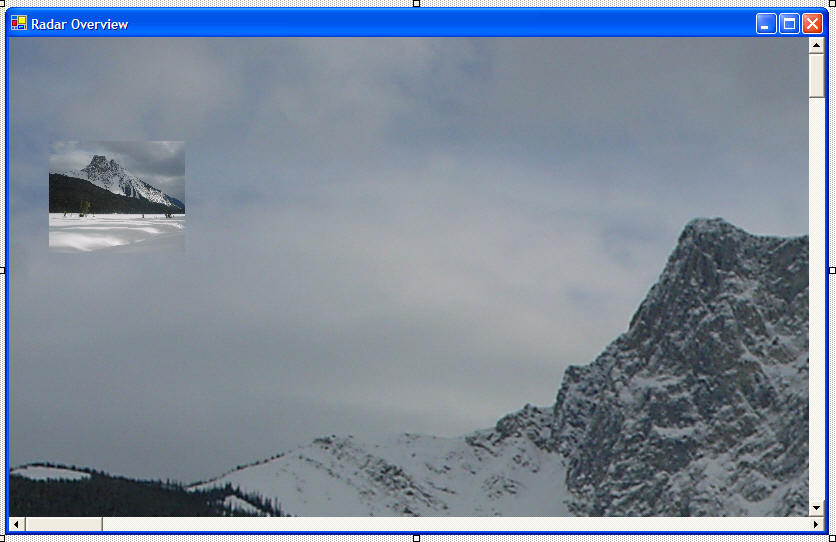
There are two picture boxes. I placed an image in each using the Image property in the Properties toolbar. Name the large picture box largePic and set the SizeMode property to AutoSize. Name the small picture box smallPic and set the SizeMode property to StretchIMage. Add a horizontal scroll bar named hBar and a vertical scroll bar named vBar, placing them along each side of the window.
5. Add the following code above your Form1 constructor:
private int w; //
width
private int h; // height
private int scaleFactor; // proportional size of the radar
6. Create a Form1_Load function by double clicking on the form. Add this code:
// set the scrollable
area
hBar.Maximum = largePic.Width;
vBar.Maximum = largePic.Height;
// set how much smaller we want the radar to be
scaleFactor = 8;
// the radar view will be exactly one quarter the size of
the window
smallPic.Width = largePic.Width / scaleFactor;
smallPic.Height = largePic.Height / scaleFactor;
// calculate the width and height of the viewable area
w = this.Width / scaleFactor;
h = this.Height / scaleFactor;
// position the radar in the top left corner of the window
smallPic.Left = 0;
smallPic.Top = 0;
7. Add two event handlers for the scroll bars by double clicking on each in turn. Place this code in each:
private void hBar_Scroll(object sender,
System.Windows.Forms.ScrollEventArgs e)
{
// move the large picture according to the scrollbar
largePic.Left = -hBar.Value;
// repaint the radar picture box
this.smallPic.Refresh();
}
private void vBar_Scroll(object sender, System.Windows.Forms.ScrollEventArgs e)
{
// move the large picture according to the scrollbar
largePic.Top = -vBar.Value;
// repaint the radar picture box
this.smallPic.Refresh();
}
8. Create a paint routine for the small picture box to draw the red rectangle. First, select the picturebox then go to the Properties toolbar. Click on the Yellow Lightning Bolt and then double click on the Paint event.
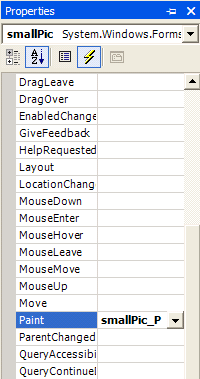
A paint function will get created for you. This event handler will run whenever the small picture box needs to be redrawn or repainted. It also gets called when you call smallPic.Refresh(), like we did in the scroll bar event handlers.
Place this code in the smallPic_Paint function:
// a pen for drawing
Pen p = new Pen(Color.Red,2);
// calculate the x, y position of the top left corner of
the red box
int x = hBar.Value / scaleFactor;
int y = vBar.Value / scaleFactor;
// draw a rectangle in the graphics object belonging to
our small picture box
e.Graphics.DrawRectangle(p, x, y, w, h);
9. That's it! Compile and run!