Databases with ADO.Net Example
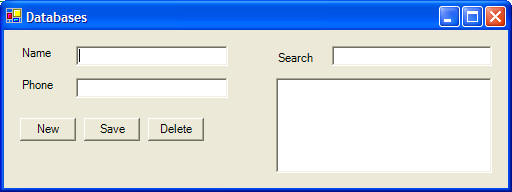
These instructions will build an example program that looks like this:
The new button creates an empty record. The save button will update the current record being viewed. The delete button will remove the current record being viewed. You can search for records by typing a person's name in the Search box; the results are shown dynamically while the user types in a search word.
 |
Download the code by clicking on the Zip file. |
Instructions for Creating the Example:
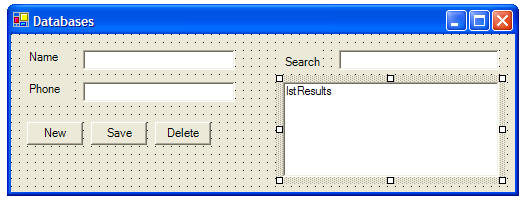
The textboxes are called txtName, txtPhone, and txtSearch. The buttons are called cmdNew, cmdSave, and cmdDelete. The listbox is called lstResults.
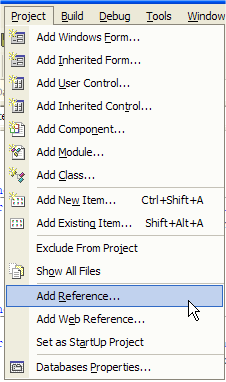
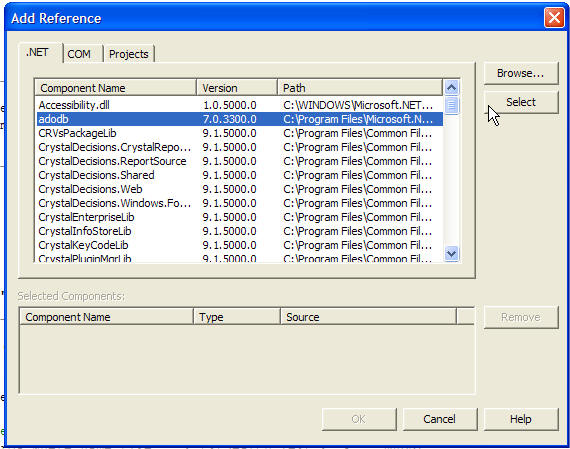
6. Select adodb from the list and click Select.
7. At the top of your code add these two lines:
' stores the
connection to an Access database
Public myDB As New ADODB.Connection
' stores the ID of the current record being viewed, this
is used for Saving/Updating the record
Public currentID As Integer
8. In Microsoft Access, create a database and save it as "db1.mdb" in the bin folder of your VB .Net project. In this database, create a table called "records" and place two text fields: Name and Phone. When you save your table it will create an ID field that will be auto-generated. (The table creation process is not described in detail, as this example is mostly to describe VB .Net and not Access)
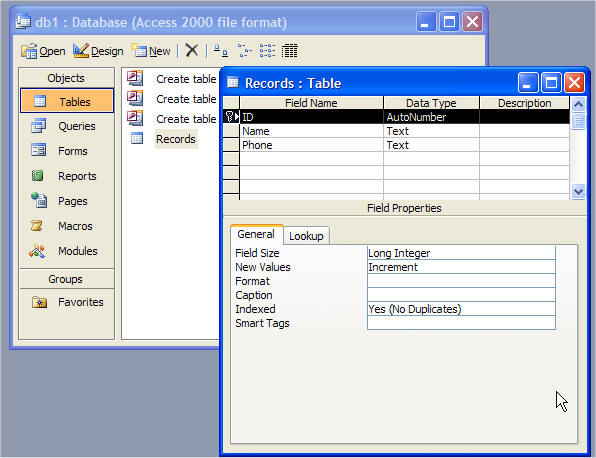
9. We'll now write three functions to handle database stuff. The first will create new records, the second will update/save records, and the third will delete records. Later, we will use these in the events for our buttons. Place these three functions into your code:
Private Function CreateNewRecord() As Integer
' create a new record in the database
' create a record set, this is just a set of records
Dim myRS As New ADODB.Recordset
' open the record set and have it contain all records in the database table
called address
myRS.Open("records", myDB, ADODB.CursorTypeEnum.adOpenKeyset,
ADODB.LockTypeEnum.adLockOptimistic)
' add a new empty record
myRS.AddNew()
' update the recordset to include the new entry
myRS.Update()
myRS.Requery()
' go to the record we just created
myRS.MoveLast()
' grab the record's ID value so we can edit it, return this from the function
CreateNewRecord = myRS.Fields("ID").Value
' close the record set
myRS.Close()
End Function
Public Function UpdateRecord(ByVal currentID As Integer, ByVal Name As String,
ByVal Phone As String)
' edit a record in the database
Dim myRS As New ADODB.Recordset
' open a recordset from the table named address
myRS.Open("records", myDB, ADODB.CursorTypeEnum.adOpenKeyset,
ADODB.LockTypeEnum.adLockOptimistic)
' find the record to update
myRS.Find("ID=" & currentID)
' change fields to update them
myRS.Fields("name").Value = Name
myRS.Fields("phone").Value = Phone
' update and close the recordset
myRS.Update()
myRS.Close()
End Function
Public Function DeleteRecord(ByVal currentID As Integer)
' delete a record from the database
' create a string variable that will hold an SQL statement
Dim mySQL As String
' Example: mySQL = "Delete * from address where name='Joe Blow' "
mySQL = "Delete * from records where name='" & txtName.Text & "'"
' execute the SQL command
myDB.Execute(mySQL)
End Function
10. Double click on your
form to create a Form1_Load event. Add this code to it so you can connect
to your Access database. We start the program with a new empty record.
Private Sub Form1_Load(ByVal sender As
System.Object, ByVal e As System.EventArgs) Handles MyBase.Load
' connect to the Access database
myDB.Open("Provider=Microsoft.Jet.OLEDB.4.0;Data
Source=" & Application.StartupPath & "/db1.mdb")
currentID = CreateNewRecord()
End Sub
11. Create a click event for the cmdNew button by double clicking on it. Add this code:
Private Sub cmdNew_Click(ByVal sender As System.Object, ByVal e As
System.EventArgs) Handles cmdNew.Click
currentID = CreateNewRecord()
' clear the fields
txtName.Text = ""
txtPhone.Text = ""
End Sub
12. Create a click event for the cmdSave button by double clicking on it. Add this code:
Private Sub cmdSave_Click(ByVal sender As System.Object, ByVal e As
System.EventArgs) Handles cmdSave.Click
UpdateRecord(currentID, txtName.Text, txtPhone.Text)
End Sub
13. Create a click event for the cmdDelete button by double
clicking on it. We will leave a new empty record after we delete the
record. Add this code:
Private Sub cmdDelete_Click(ByVal sender As System.Object, ByVal e As
System.EventArgs) Handles cmdDelete.Click
DeleteRecord(currentID)
' clear text boxes
txtName.Text = ""
txtPhone.Text = ""
txtSearch.Text = ""
currentID = CreateNewRecord()
End Sub
14. Create a TextChanged event for the txtSearch textbox so
that when someone types their keyword, the search results will update. Add
this code:
Private Sub txtSearch_TextChanged(ByVal sender As System.Object, ByVal e As
System.EventArgs) Handles txtSearch.TextChanged
' search for a record
Dim myRS As New ADODB.Recordset
' match the first few characters that are typed
myRS.Open("Select * from records where name Like '" & txtSearch.Text & "%'",
myDB)
' clear old results
lstResults.Items.Clear()
' place results in the list
While Not myRS.EOF
lstResults.Items.Add(myRS.Fields("name").Value)
' go to next record in the results
myRS.MoveNext()
End While
myRS.Close()
End Sub
15. When the user clicks on a search result, it will appear in the main
textboxes. Create a click event for the lstResults listbox.
Private Sub lstResults_Click(ByVal sender As Object, ByVal e As System.EventArgs)
Handles lstResults.Click
' check if something is selected in the list
If lstResults.SelectedIndex <> -1 Then
Dim myRS As New ADODB.Recordset
' match the selected name to one in the database
myRS.Open("Select * from records where name='" &
lstResults.Items(lstResults.SelectedIndex) & "'", myDB)
' load the record
txtName.Text = myRS.Fields("name").Value
txtPhone.Text = myRS.Fields("phone").Value
' save the ID in case we want to update
currentID = myRS.Fields("ID").Value
myRS.Close()
End If
End Sub