
Databases using ADO
|
Download a sample VB program uses ADO with an Access database. |
Instructions for Creating the Example:
 on
your form. In the first frame place 3 textboxes, 3 labels, and 3 command
buttons. In the second frame place 1 textbox, 1 label, and a
listbox.
on
your form. In the first frame place 3 textboxes, 3 labels, and 3 command
buttons. In the second frame place 1 textbox, 1 label, and a
listbox.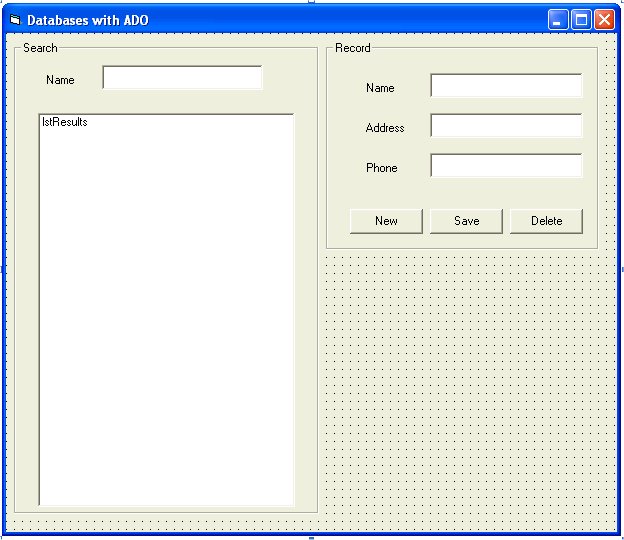
Textbox 1 -> txtName
Textbox 2 -> txtAddress
Textbox 3 -> txtPhone
Textbox 4 -> txtSearch
Command 1 -> cmdNew
Command 2 -> cmdSave
Command 3 -> cmdDelete
Listbox 1 -> lstResults
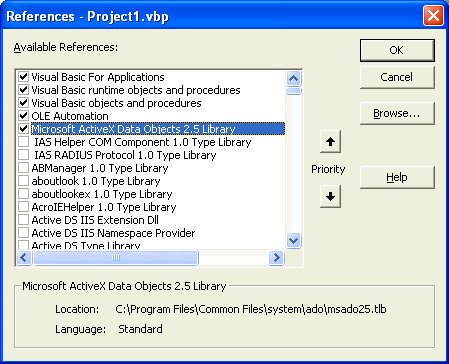
Public myDB As New ADODB.Connection
' a variable to hold a connection to an ADO database
Public currentID As Integer
' a variable to hold the current record's ID number, it is
created automatically for each record
myDB.Open "Provider=Microsoft.Jet.OLEDB.4.0;Data Source=" & _
App.Path & "\address.mdb;Persist Security Info=False"
Private Sub cmdNew_Click()
' create a new record in the database
' clear the fields
txtName.Text = ""
txtAddress.Text = ""
txtPhone.Text = ""
' create a record set, this is just a set of records
Dim myRS As New ADODB.Recordset
' open the record set and have it contain all records in the database table called address
myRS.Open "address", myDB, adOpenKeyset, adLockOptimistic
myRS.AddNew
' set fields
myRS!Name = txtName.Text
myRS!address = txtAddress.Text
myRS!phone = txtPhone.Text
' update the recordset to include the new entry
myRS.Update
myRS.Requery
' go to the record we just created
myRS.MoveLast
' grab the record's ID value so we can edit it
currentID = myRS.Fields("ID").Value
' close the record set
myRS.Close
End Sub
Private Sub cmdSave_Click()
' edit a record in the database
Dim myRS As New ADODB.Recordset
' open a recordset from the table named address
myRS.Open "address", myDB, adOpenKeyset, adLockOptimistic
' find the record to update
myRS.Find "ID=" & currentID
' change fields to update them
myRS.Fields("name").Value = txtName.Text
myRS.Fields("address").Value = txtAddress.Text
myRS.Fields("phone").Value = txtPhone.Text
' update and close the recordset
myRS.Update
myRS.Close
End Sub
Private Sub cmdDelete_Click()
' delete a record from the database
Dim answer As String
' confirm the user really wants to delete the record
answer = MsgBox("Are you sure you want to delete " & txtName.Text & "?", vbYesNo, "Delete")
If answer = vbYes Then
' create a string variable that will hold an SQL statement
Dim mySQL As String
' Example: mySQL = "Delete * from address where name='Joe Blow' "
mySQL = "Delete * from address where name='" & txtName.Text & "'"
' execute the SQL command
myDB.Execute (mySQL)
' feedback for user
MsgBox txtName.Text & " was deleted from the database.", vbOKOnly, "Deleted"
' clear text boxes
txtName.Text = ""
txtAddress.Text = ""
txtPhone.Text = ""
End If
End Sub
Call cmdNew_Click
Private Sub txtSearch_Change()
' search for a record
Dim myRS As New ADODB.Recordset
' match the first few characters that are typed
myRS.Open "Select * from address where name Like '" & txtSearch.Text & "%'", myDB
' clear old results
lstResults.Clear
' place results in the list
While Not myRS.EOF
lstResults.AddItem myRS.Fields("name").Value
' go to next record in the results
myRS.MoveNext
Wend
myRS.Close
End Sub
Private Sub lstResults_Click()
' check if something is selected in the list
If lstResults.ListIndex <> -1 Then
Dim myRS As New ADODB.Recordset
' match the selected name to one in the database
myRS.Open "Select * from address where name='" & lstResults.List(lstResults.ListIndex) & "'", myDB
' load the record
txtName.Text = myRS.Fields("name").Value
txtAddress.Text = myRS.Fields("address").Value
txtPhone.Text = myRS.Fields("phone").Value
' save the ID in case we want to update
currentID = myRS.Fields("ID").Value
myRS.Close
End If
End Sub