Bifocal Lens
|
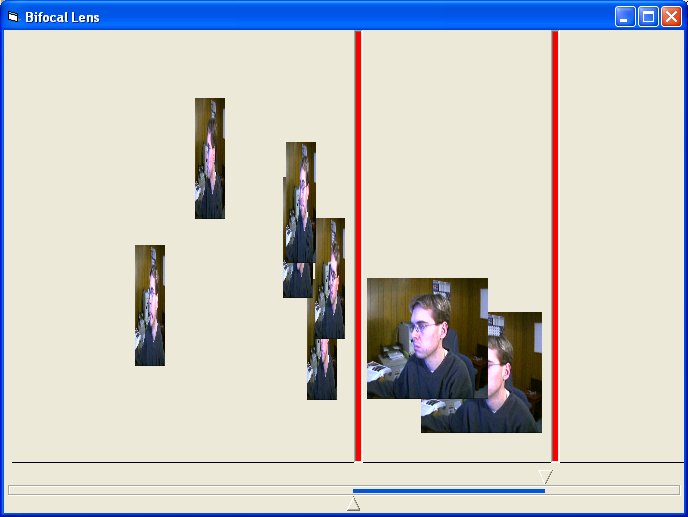
Download a sample VB program that creates a bifocal lens where objects in the focal region are larger than those outside the focal region. |
Instructions for Creating the Example:
 on
your form, name them picDivider(0) and picDivider(1) - these
are a control array, to get the index number just set the Index property -
and set finally their BackColor to red.
on
your form, name them picDivider(0) and picDivider(1) - these
are a control array, to get the index number just set the Index property -
and set finally their BackColor to red. on your form and set its Index property to 0.
 on your form.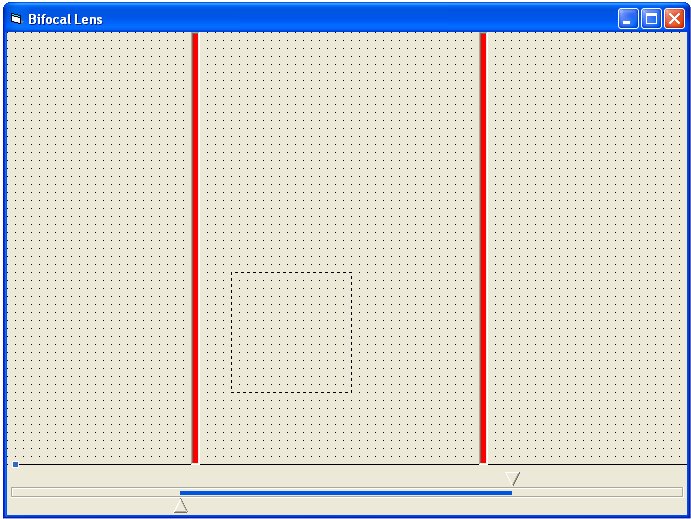
Dim RegularWidth As Integer
Dim NarrowWidth As Integer
Private Sub Form_Load()
' define widths for objects within each focal area
RegularWidth = 1815
NarrowWidth = RegularWidth / 4
' start up random number generator
Randomize
' set the range of the double slider to be the full range of the form
RangeTool1.Max = Me.ScaleWidth
RangeTool1.Min = 0
RangeTool1.UpperValue = Me.ScaleWidth - 200
' place the focal dividing bars
picDivider(0).Left = RangeTool1.LowerValue
picDivider(1).Left = RangeTool1.UpperValue
' load some pictures and position them randomly
For i = 1 To 8
Load Image1(i)
FileName = App.Path & "\picture" & i & ".jpg"
Image1(i).Picture = LoadPicture(FileName)
Image1(i).Left = Rnd * (Me.ScaleWidth - Image1(i).Width)
Image1(i).Top = Rnd * (Line1.Y1 - Image1(i).Height)
Image1(i).Visible = True
Next
' set the initial size of all the pictures
Call RangeTool1_Scroll
End Sub
Private Sub RangeTool1_Scroll()
' move the focal dividing bars
picDivider(0).Left = RangeTool1.LowerValue
picDivider(1).Left = RangeTool1.UpperValue
' resize pictures inside the focal region to be larger
For i = 1 To 8
If Image1(i).Left > picDivider(0).Left And Image1(i).Left < picDivider(1).Left Then
Image1(i).Width = RegularWidth
Else
Image1(i).Width = NarrowWidth
End If
Next
End Sub