
Dynamic Array of Structures
|
Download a sample VB program that creates a dynamic array. |
Instructions for Creating the Example:
 on
your form. In the first frame place 3 textboxes, 3 labels, and a
command button. In the second frame place 1 textbox, 1 label, and a
listbox.
on
your form. In the first frame place 3 textboxes, 3 labels, and a
command button. In the second frame place 1 textbox, 1 label, and a
listbox.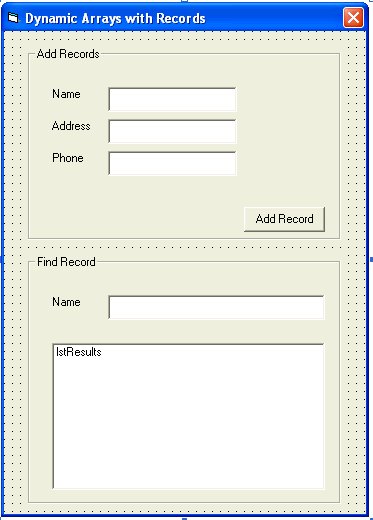
Textbox 1 -> txtName
Textbox 2 -> txtAddress
Textbox 3 -> txtPhone
Textbox 4 -> txtSearch
Command 1 -> cmdNew
Listbox 1 -> lstResults
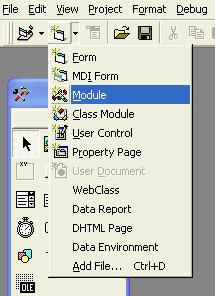
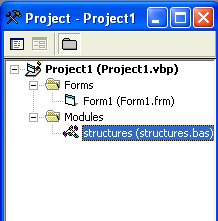
' create a person record
Public Type person
name As String
address As String
phone As String
End Type
' the total number of records + 1 extra for a new record
Public numberOfRecords As Integer
' a dynamic array to store records
Public myAddressBook() As person
Private Sub cmdNew_Click()
' store the new record in our array
myAddressBook(numberOfRecords - 1).name = txtName.Text
myAddressBook(numberOfRecords - 1).address = txtAddress.Text
myAddressBook(numberOfRecords - 1).phone = txtPhone.Text
numberOfRecords = numberOfRecords + 1
' make our array grow
' preserve keeps our old records intact
ReDim Preserve myAddressBook(numberOfRecords) As person
Dim fileNumber As Integer
fileNumber = 1
' open a file for output in the application's directory
Open App.Path & "\addbook.txt" For Append As #fileNumber
' write out each portion of data
Print #fileNumber, txtName.Text
Print #fileNumber, txtAddress.Text
Print #fileNumber, txtPhone.Text
' close the file
Close #fileNumber
' clear the text input
txtName.Text = ""
txtAddress.Text = ""
txtPhone.Text = ""
End Sub
Private Sub Form_Load()
' start with one empty record in our array
numberOfRecords = 1
ReDim Preserve myAddressBook(numberOfRecords) As person
' make sure our input file exists before we try to load records from it
If Dir$(App.Path & "\addbook.txt") = "" Then
Exit Sub
End If
' will hold a line from our file when
we read in
Dim temp As String
Dim fileNumber As Integer
fileNumber = 1
' open file for reading
Open App.Path & "\addbook.txt" For Input As #fileNumber
While Not EOF(1) ' while we have not reached the end of file 1
' read a line, place contents in temp, then add to address book
Line Input #fileNumber, temp
myAddressBook(numberOfRecords - 1).name = temp
Line Input #fileNumber, temp
myAddressBook(numberOfRecords - 1).address = temp
Line Input #fileNumber, temp
myAddressBook(numberOfRecords - 1).phone = temp
numberOfRecords = numberOfRecords + 1
' make our array grow
' preserve keeps our old records intact
ReDim Preserve myAddressBook(numberOfRecords) As person
Wend
' close the file
Close #1
End Sub
Private Sub txtSearch_Change()
' clear results
lstResults.Clear
' count the number of letters to compare
letters = Len(txtSearch.Text)
' check each element in the array to see if the name matches
For i = 0 To numberOfRecords - 2
' compare only the number of letters typed
in, grab the first few letters of the string with Left
If Left(myAddressBook(i).name, letters) = Left(txtSearch.Text, letters) Then
lstResults.AddItem myAddressBook(i).name & ", " & myAddressBook(i).phone
End If
Next i
End Sub