Radar Overview
|
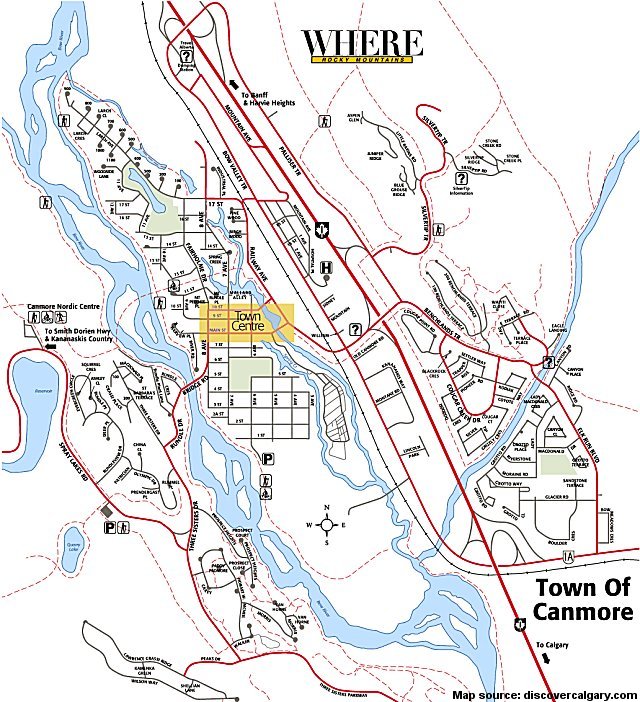
Download a sample VB program that creates a radar overview of a map. |
Instructions for Creating the Example:
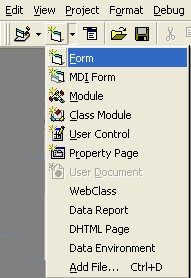
 ,
one vertical scroll bar
,
one vertical scroll bar  ,
and a picture box
,
and a picture box  .
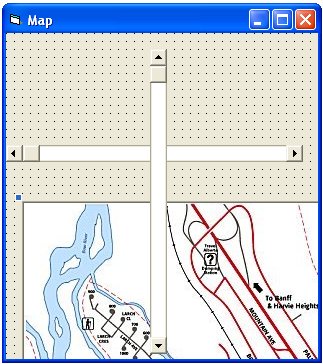
.
 and one shape
  .
.
' place this line above your code
Dim ScaleFactor As Integer
Private Sub Form_Load()
' set the scale factor of our radar overview
ScaleFactor = 2
' position map in top left corner
Picture1.Left = 0
Picture1.Top = 0
' resize the main form so not all of the map is shown (or we don't need the overview)
' note: Me refers to the current form (ie. Form1 in this case)
' note: the properties scalewidth and scaleheight don't include the bar around the window
' width includes the border, and height even includes the title bar at the top
Me.ScaleWidth = Picture1.Width / 2
Me.ScaleHeight = Picture1.Height / 2
' position the scroll bars on the outer edges of the window
HScroll1.Left = 0
HScroll1.Top = Me.ScaleHeight - HScroll1.Height
VScroll1.Left = Me.ScaleWidth - VScroll1.Width
VScroll1.Top = 0
' set the scrollable area
HScroll1.Max = Picture1.Width - Me.ScaleWidth
VScroll1.Max = Picture1.Height - Me.ScaleHeight
' display the second form and scale it
Form2.Show
Form2.ScaleWidth = Picture1.Width / ScaleFactor
Form2.ScaleHeight = Picture1.Height / ScaleFactor
Form2.Image1.Width = Picture1.Width / ScaleFactor
Form2.Image1.Height = Picture1.Height / ScaleFactor
' size the rectangle to match the viewable area in form1
Form2.Shape1.Width = Form2.ScaleWidth / ScaleFactor - VScroll1.Width
Form2.Shape1.Height = Form2.ScaleHeight / ScaleFactor - HScroll1.Height
End Sub
Private Sub HScroll1_Scroll()
' move the picture
Picture1.Left = -HScroll1.Value
' move the rectangle in the overview
Form2.Shape1.Left = HScroll1.Value / ScaleFactor
Form2.Shape1.Top = VScroll1.Value / ScaleFactor
End Sub
Private Sub VScroll1_Scroll()
' move the picture
Picture1.Top = -VScroll1.Value
' move the rectangle in the overview
Form2.Shape1.Left = HScroll1.Value / ScaleFactor
Form2.Shape1.Top = VScroll1.Value / ScaleFactor
End Sub