
Control Arrays
|
Download a sample VB program that uses an array of controls. |
Instructions for Creating the Example:
 , four
labels
, four
labels  , and three
textboxes
, and three
textboxes  .
Select them from the toolbar and then draw a rectangle on the
form. You can move them around and resize them as you like.
.
Select them from the toolbar and then draw a rectangle on the
form. You can move them around and resize them as you like.| Command Button 1 | Label 1 | Label 2 | Label 3 | Label 4 | |
| Name | cmdClear | lblName | lblAddress | lblPhone | lblEvent |
| Caption | Clear All | Name | Address | Phone | Event info will show up here |
All three textboxes will have the same name, but each will be assigned a different index value. We can later use the index value to uniquely identify each textbox, just like an element in an ordinary array.
| Text Box 1 | Text Box 2 | Text Box 3 | |
| Name | txtData | txtData | txtData |
| Index | 0 | 1 | 2 |
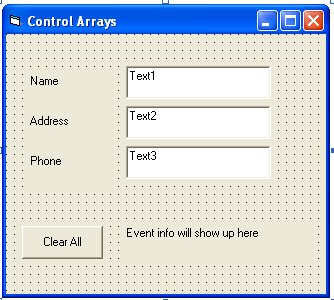
It should look something like this:
Private Sub txtData_Change(Index As Integer)
lblEvent.Caption = "You typed in textbox " & Index
End Sub
Private Sub cmdClear_Click()
' clear each textbox in the array of textboxes
For i = 0 To 2
txtData(i).Text = ""
Next
' an equivalent while loop would be:
i = 0
While i < 3
txtData(i).Text = ""
i = i + 1
Wend
End Sub
 in the toolbar under the menu.