
Visual Basic Notes
By Carman Neustaedter
Summer 2000
Table of Contents
Windows & Forms
*Forms
*Basic Objects
*Textboxes
*Labels
*Command Buttons
*Frames
*Option Buttons
*Check Boxes
*Scroll Bars
*Timer
*Image
*List Boxes
*Menu Bars
*Coding
*Adding Code
*Exiting Your Program While Running
*Comments
*Variables
*Casting
*Message Boxes
*If/Else Statements
*Case/Select Statements
*Loops
*Do/While Loop
*Do…Loop While
*For Loop
*Exit For/ Exit Do
*Arrays
*Saving and Compiling Your Programs
*Saving Forms and Projects
*Running Programs
*Debugging Your Program
*Making an Executable File
*Creating a Setup Program
*Tips and Tricks
*Preventing Multiple Copies
*Playing Sound
*Playing Midi
*Playing an AVI File
*Opening Another Program
*Functions
*Function Calling
*Arguments
*Returns
*Modules
*Web Search Engines
*Creating Custom Web Browsers
*Internet Transfer Control
*OpenURL Method
*StateChanged Event
*GetChunk Method
*Execute Method
*Properties
*ActiveX
*Creating ActiveX Documents
*Sources and Visual Basic Web Sites
*Visual Basic Notes
Forms are windows for a program. You can add multiple forms by clicking on the form button in the toolbar.
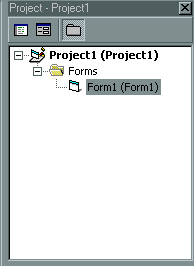
 You can switch between the forms you are viewing by clicking on the form you want to view in the Project toolbar (see below).
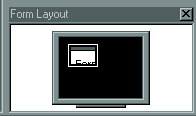
You can alter the position of your form when the program runs by moving it in the Form Layout toolbar (see above).
When using multiple forms you can have another form display by using the following code:
nextForm.show (displays the new form)
oldForm.hide (hides the old form)
To close a form and unload it from the memory used by your program, use the following code:
Unload Me
To edit an object on a non-active form, use the following code:
<form name>.<item>.<property> = < what you are setting the property to>

The following objects can be added by double clicking or clicking on a button in the General toolbar (see below). By hovering over the General toolbar, the name of each object will be displayed.
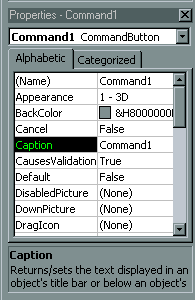
Each of their properties can be set through the Properties toolbar (see above) or by using code in the program (sample code for all basic objects to follow).
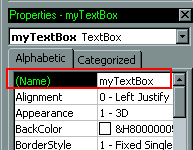
When you first create an object, you will want to give it a unique name (see below). In your code, you will always refer to the object by this name.
If you want to set a property of an object in your code you must use the "Dot Operator"
The syntax is:
<name>.<property> = <what you are setting the property to>
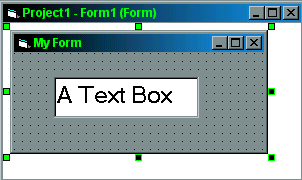
Textboxes allow someone to type text in a program.
Sample Code:
myTextBox.text = "A Text Box"This code would change the text in mytextbox to "A Text Box".
Labels are used to make program headings or titles.
Sample Code:
myLabel.Caption = "Welcome to My Program"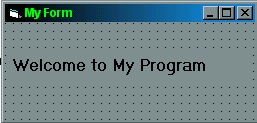 This code would change the caption in myLabel to "Welcome to My Program"
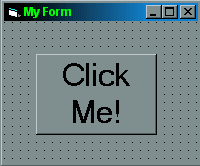
Command Buttons are used to perform actions when someone clicks on them. Any code may be used in the button.
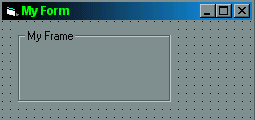
Frames are used to enclose a group of objects.
Option Buttons are used to allow someone to select one item from a group of items.
A group of items is usually enclosed within a frame.
Option Buttons have values of true and false; true represents an filled option button and false represents a cleared option button.
Sample Code:
Option1.Value = True (fills the option button)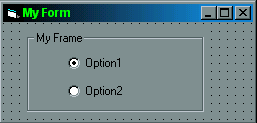 Option2.Value = False (clears the option button)
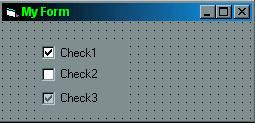
Check Boxes are used to allow someone to select multiple items from a group of items.
Check Boxes have values of 1 (checked), 0 (unchecked), 2 (dimmed). You can not click on a dimmed check box when your program is running.
Sample Code:
Check1.Value = 1 (checks the checkbox)Check2.Value = 0 (unchecks the checkbox)
Check3.Value = 2 (dims the checkbox)
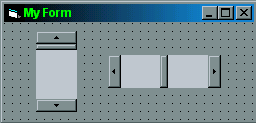
Scroll bars are used to allow someone to select an item from a given range. They are most commonly used with selecting numbers.
Scroll bars come as both vertical and horizontal. You can set the minimum and maximum values for the scroll bar in the properties box or through code.
Sample Code:
myScrollBar.value = 5myScrollBar.min = 0
myScrollBar.max = 10
The Timer is used to have events begin at a certain time interval. The interval can be set in the property box, but must be in milliseconds. If the timer is enabled, you can execute code each time the interval is reached. Interval code can be placed by double clicking on the stop watch in your form.
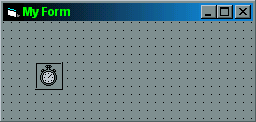
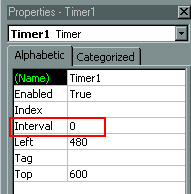
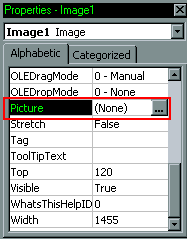
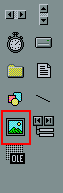 Image is used to add graphics to a form. The picture file (jpg, gif, bmp, emf, wmf, dib, ico, cur formats are accepted) may be specified in the property box.
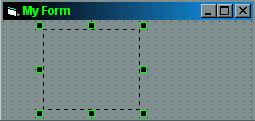
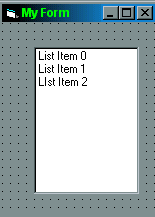
List Boxes are used to contain a list of items. You can add items to the list, remove items, or use a selected item from the list. Items in the list are stored as an array. 0 is the index of the first element in your list, followed by 1.
Sample Code:
myList.addItem "List Item 1"myList.removeItem 1
Menus can be used to perform actions.
To add a menu bar:
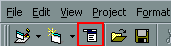
Click on the Menu Editor icon
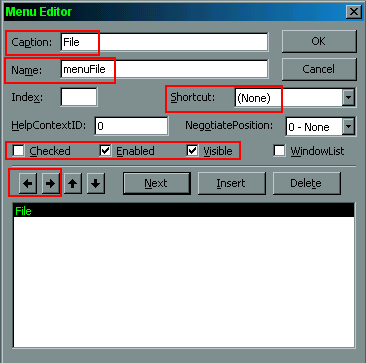
Specify a name and caption for each menu item in the window that appears. The name is what you will refer to the menu item as in your code. The caption is the text that will be displayed in the menu.
Keyboard shortcut keys for menu items can also be added here.
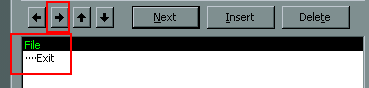
The left and right arrows are used to move menu items under a heading.
eg. To add Exit under the File menu, the right arrow would have to be clicked.
Sample Code:
menuFile.Checked = TruemenuFile.Enabled = True
menuFile.Visible = False
Code can be added to any object by double clicking on it. This will bring up a window where you code must be typed in. Code for each object executes on a certain event for that object and must be typed between the Private Sub line and the End Sub line.
The code window looks as follows.
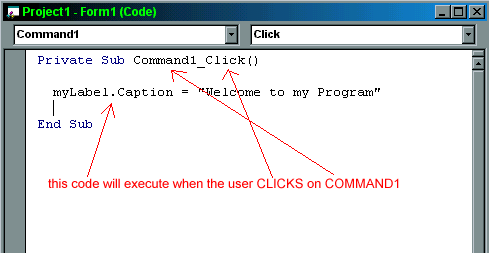
Events for the object can be changed in the menu in the top right corner of the window. The object can be changed in the menu in the top left corner of the window.
Exiting Your Program While Running
To exit your program while it is running use the code:
End
To add comments to your code use the apostrophe ‘
Everything following an apostrophe on that line will be commented out. Comments are useful to document your code and explain why you used the given code. If other programmers need to review your code or edit your code, comments will help them to understand your work.
Sample Code:
myTextBox.Text = "Hello" ‘ Everything after the apostrophe will be green
Variables can be declared in your program to store values. Variables can also be changed during your program.
Variables can be made for many data types in Visual Basic. Below are the most common ones.
Sample Code:
Dim w As Boolean	‘ declares w to store either true or false
Dim x As Integer	‘ declares x to store a whole number
Dim y As String		‘ declares y to store text
Dim z As Double ‘ declares z to store a number with a decimal point
w = True
w = False
x = 10
y = "My Text"
z = 1.31415926
Casting turns one type of a variable into another type.
The Syntax:
<new data type> (<variable name>)
eg. You can not display a number in a text box. You must first turn the number into a string.
number = 12345
myTextBox.Text = Str (number) ‘ number is cast to a string
We will usually only cast numbers to strings to output them. Casting can be done between other data types however.
You may have to cast text to a value in your program. This is shown in the following example.
eg.
x = Val (myTextBox.Text) ‘ this will turn the string in myTextBox to
‘ a number
Message Boxes are used to pop up boxes with text and an OK button.
The syntax is:
MsgBox <your text>, ,<title>
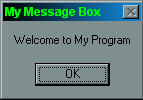 Sample Code:
MsgBox "Welcome to My Program", ,"My Message Box"
Visual Basic also has special message boxes available.
eg.
Dim reply
reply = MsgBox("Exit – are you sure?", vbYesNo)
If reply = vbYes Then End ‘ this type of statement will be
‘ explained in the next section
The previous code will display a message box with a yes and no button. When typing out the code, at the point where you type "vbYesNo" a menu will appear with the different message boxes you can choose from.
If/Else Statements are used to allow programs to make decisions.
The syntax for a statement containing an If is:
If <condition> Then
<operation>
EndIf
eg.
number = 0If number > 5 Then ‘ check if number is greater than 5
MsgBox "Greater Than 5"
‘ the message box will only be displayed if number > 5
EndIf
If you want to check multiple conditions you can use the operators And, Or, and Not.
eg.
number = 0If number > 5 And number < 10 Then
MsgBox "Greater Than 5, Less Than 10"
EndIf
eg.
number = 0If Not number > 5 Then
MsgBox "the number is not Greater Than 5"
EndIf
If you want to check multiple conditions consecutively you can use an ElseIf.
The syntax for a statement containing an ElseIf is:
If <condition> Then
<operation>
ElseIf <condition> Then
<operation>
EndIf
eg.
number = 5If number > 5 Then
MsgBox "Number > 5"
ElseIf number = 5 Then
MsgBox "Number = 5"
EndIf
This code will check the first If condition and because it is not true, will move on and check the ElseIf statement. The ElseIf statement will be true and MsgBox "Number = 5" will be displayed.
An Else statement is used at the end of an If statement for instances where all the If statements were false. An Else statement will execute only if all the If statements are false.
I
The syntax for a statement containing an If, ElseIf, and Else is:
If <condition> Then
<operations>
ElseIf <condition> Then
<operations>
Else
<operations>
End If
eg.
number = 5If number = 6 Then
MsgBox "Number = 6"
ElseIf number = 4 Then
MsgBox "Number = 4"
Else
MsgBox "Number not = 4 and not = 6"
EndIf
A Case Statement is another form of an If statement. It is convenient for checking many conditions.
eg.
x = 2
Select Case x
Case 0
MsgBox "x = 0" ‘ executed if x = 0
Case 1
MsgBox "x = 1" ‘ executed if x = 1
Case 2
MsgBox "x = 2" ‘ executed if x = 2
End Select
Loops are used to repeat lines of code multiple times. Every loop checks a condition and then will execute the code in the loop until the condition is false.
There are 3 types of looping constructs. They differ in their syntax and in when they check the condition
The Do/While Loop checks the condition at the beginning of the loop before any other statements are executed.
The Syntax for a Do/While Loop:
Do While <condition>
<statements>
Loop
eg.
number = 1Do While number < 1001 ‘ checks the condition and executes
‘ if true
number = number + 1 ‘ performs operations
MsgBox "Number increments"
Loop ‘ loops back to the condition
The Do…Loop While will execute at least once. The condition is checked at the end of the loop.
The Syntax for a Do…Loop While:
Do
<statements>
Loop While <condition>
eg.
number = 10Do
myTextBox.Text = Str (number) ‘ performs operations
number = number + 1
Loop While number < 20 ‘ checks condition and loops if
‘ condition is true
The For Loop is a powerful loop that allows a number to be incremented or decremented in the Loop statement. You can Step through the loop by any integer value. If no Step value is stated, the loop defaults to Steps of 1.
eg.
For n = 1 to 100 Step 1 ‘ condition that n < 100, n gets
‘ incremented by 1
myTextBox.Text = Str (n) ‘ output n as a string in a text
‘ box
Next ‘ loop back to For line
eg.
For n = 100 to 1 Step –1myTextBox.Text = Str (n)
Next
eg.
For n = 1 to 100 Step 2myTextBox.Text = Str (n)
Next
To break out of a "for" or "do" loop without using the condition specified use the command Exit For or Exit Do.
eg. For n = 1 to 100 Step 1
If n = 500
Exit For
EndIf
Next
An array is a data structure that is used to store elements of the same data type. Elements of an array are accessed using an index number. Indexes of an array typically begin with 0.
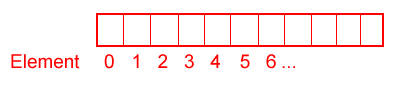 It may help to imagine an array as a set of cupboards. The cupboards are numbered (called the index) starting at 0. Each cupboard can hold one element. An element in a cupboard can be accessed using the cupboard number.
Arrays in Visual Basic are used frequently to access elements in a list box. They can also be used with multiple objects of the same type. Following is an example using command buttons.
eg.
Create two command buttons and name one myCommand and in the property bar set its index to 0.
Name the second button myCommand also and in the property bar set its index to 1.
You now have an array of two command buttons.
To access each command button you can use code like this:
Private Sub Command1_Click(Index as Integer)
Select Case Index		‘ code will execute depending on the index
‘ value of the button clicked
Case 0:
MsgBox "First command button in array"
Case 1:
MsgBox "Second command button in array"
End Select
End Sub
Saving and Compiling Your Programs
Your program is saved in two steps, the forms followed by the project.
 To save click on either the disk or under the File Menu go to Save.
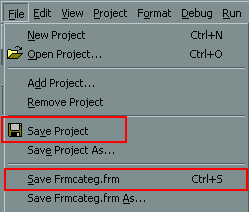
Saving the project saves how all the forms are connected and saving the forms saves the appearance of each form and the code for each form.
To run your program and test that it works correctly either go to Start under the Run menu or click on the Play button on the toolbar.
To stop running your program, either exit through your program with the End command or click on the stop button.
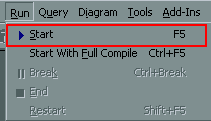

While your program is running Visual Basic will notify you of any errors you have made in your code. Debugging is the process by which errors are removed from your program. Most programmers spend more than 50% of their time debugging their code. Your programs should be run and tested for errors.
If you have an error in your program while running, an error window will popup.
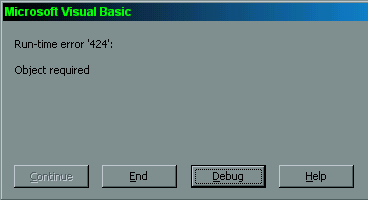
You can either click on Debug to jump to the location in your code where the error is and then correct it, or click on End to stop running your program.
Object required usually means the name of an object in your code is incorrect.
Your program will only run all the way through once your code is free of run-time errors (syntax errors).
You may also get a compile error where Method or data member not found.
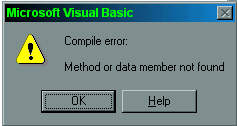
If you click on OK Visual Basic will jump to the location in your code where the error is. These types of errors usually result because you are trying to change a property that does not exist for that object.
You may run into logic errors where the code you used doesn’t do what you expect. These will not be detected by Visual Basic, but will usually be noticeable when you run your program to test it. You must fix these to make your program run correctly.
To allow your program to run without being in Visual Basic, for example, on your home computer, you will have to make an executable file.
An exe file can be made under the File menu (as shown below).
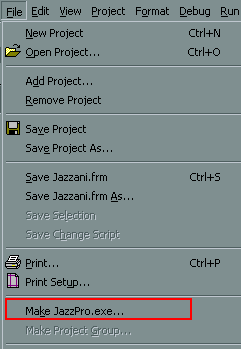
A window will appear where you can select the filename of your executable file. By clicking on Options you can set the properties of your executable file, such as version number, icons, and the programmer.
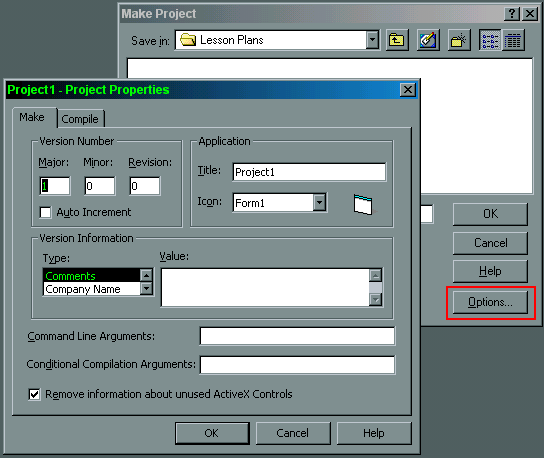
After clicking typing in your filename and clicking OK, Visual Basic will compile your code and check for errors in it during the compilation.
Once Visual Basic has compiled your code, you will have an exe file in the directory which you have saved your project. The executable file can then be taken to your home computer and run on it. Your program may need some dll (dynamic link library) files to run properly though. These files can either be copied off of a computer with Visual Basic or you can create a setup program that will include these.
To create a setup program for a Visual Basic program, go to Package and Deployment Wizard in the Start menu under Visual Basic Tools.

A window will appear where you can select your project name and then click on Package to create a setup program.
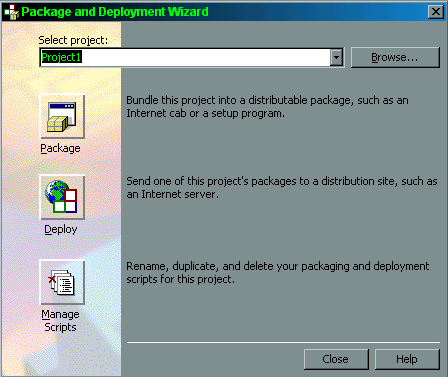
The Package and Deployment Wizard will now add dependency files that your program depends on to run.
Choose the Standard Setup packaging Script and click Next.

Choose a Standard Setup Package and click Next.
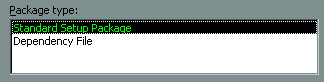
Now specify where you want your setup program to be saved. You may choose a disk if you would like your setup program to be portable.
Now choose which drivers your program needs. These will depend on what components your program uses. If you have included spreadsheets in your program you will need the Excel drivers. If you have databases in your program you will need Xbase. If you have HTML or web pages you will need Text. ODBC contains files for FoxPro, Excel, Access, dBASE, and Text.
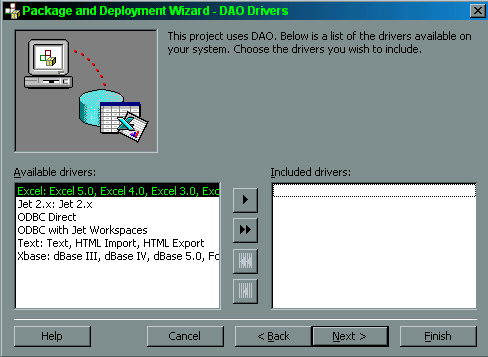
Now the wizard will tell you which dll and ocx files your program needs to run. You may add any additional files you feel your program needs at this time, such as multimedia files (avi, midi, wav).
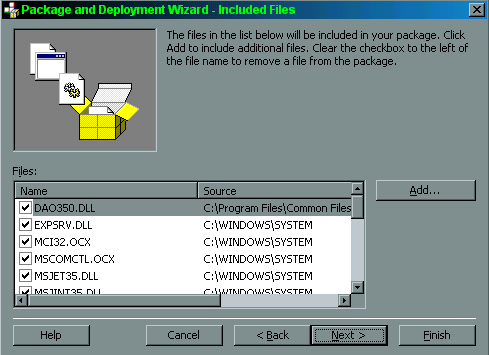
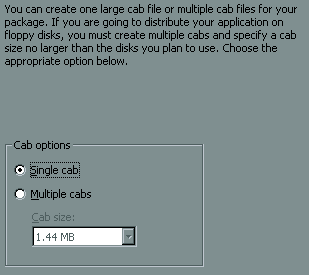
Clicking Next will let you specify if you want to create a single setup file or multiple setup files. Multiple files would be necessary for disk storage of your setup program.
Click Next to input the title of your program.
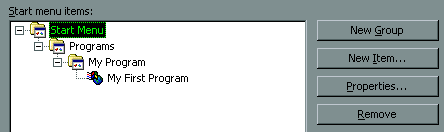
Click Next again to specify which icons you want added to the start menu when your program is installed.
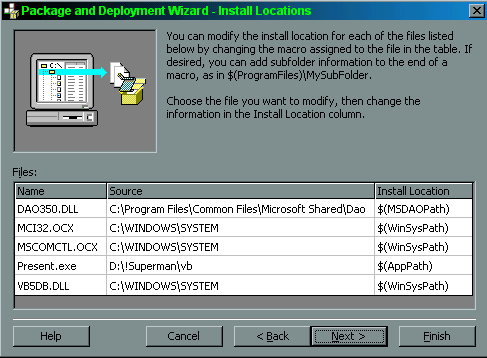
Now you can change the location of where your files will be installed. I would recommend leaving them in the default location.
Now you can specify files as being shared files for other programs. Unless your program is quite advanced you will not need any shared files. Click Next and then Finish to create the setup program.
Public Sub Main()
‘ use this as a main sub to prevent multiple copies of an application from
‘ running
If App.PrevInstance Then
BringWindowToTop frmMain.hwnd
Else
Load frmMain
End If
End Sub
(http://www.geocities.com/SiliconValley/Way/5233/vb1.htm)
'Windows sndPlaySound function declaration
Declare Function sndPlaySound Lib "winmm.dll" Alias "sndPlaySoundA" (ByVal lpszSoundName As String, ByVal uFlags As Long) As Long
'
PlayWav( ) a function to call from your VB code to play a *.wav filePublic Sub PlayWav(sFilename As String)
X& = sndPlaySound(sFilename, 1)
End Sub
(http://www.geocities.com/SiliconValley/Way/5233/vb1.htm)
Add the following code to the Command1_Click event of Form1:
   Private Sub Command1_Click()
   Dim ret As Integer

   ' The following will open the sequencer with the C:\WIN31\CANYON.MID
   ' file. Canyon is the device_id.

   ret = mciSendString("open c:\windows\CANYON.MID _
   type sequencer alias canyon", 0&, 0, 0)

   ' The wait tells the MCI command to complete before returning control
   ' to the application.
   ret = mciSendString("play canyon wait", 0&, 0, 0)

   ' Close CANYON.MID file and sequencer device

   ret = mciSendString("close canyon", 0&, 0, 0)

   End Sub
Add the following code to the general declarations section of Form1:
#If Win32 Then
   Private Declare Function mciSendString Lib "winmm.dll" Alias _
   "mciSendStringA" (ByVal lpstrCommand As String, ByVal  _
   lpstrReturnString As Any, ByVal uReturnLength As Long, ByVal _
   hwndCallback As Long) As Long

#ElseIf Win16 Then

   Private Declare Function mciSendString Lib "mmsystem" (ByVal _
   lpstrCommand As String, ByVal lpstrReturnStr As Any, ByVal _
   wReturnLen As Integer, ByVal hCallBack As Integer) As Long

 #End If
(http://www.vb-world.net/tips/tip60.html)
Add a basic module with following code
Declare Function mciSendString Lib "winmm.dll" Alias _
"mciSendStringA" (ByVal lpstrCommand As String, ByVal _
lpstrReturnString As String, ByVal uReturnLength _
As Long, ByVal hwndCallback As Long) As Long
Private Sub Form_Activate()
Dim returnstring As String
FileName As String
returnstring = Space(127)
'Avifile to play
FileName = "F:\Funstuff\Videos\Highperf\Welcome1.avi"
erg = mciSendString("open " & Chr$(34) & FileName & _
Chr$(34) & " type avivideo alias video", returnstring, _
127, 0)
erg = mciSendString("set video time format ms", _
returnstring, 127, 0)
erg = mciSendString("play video from 0", returnstring, _
127, 0)
End Sub
'It is important to close the video, even if the file to play has run out. To close the video, use the following line of code:
erg = mciSendString("close video", returnstring, 127, 0)
It's important to close the line, even the file to play has run out.
X = Shell("explorer.exe", vbNormalFocus) ‘ Will open up the Windows‘ Explorer
A function is a sub-program that returns a single value, a set of values, or performs some specific task.
In Visual Basic, functions are first either defined as Public or Private for our purposes. Any object in your program can call public functions and therefore you will use it in most instances. Private functions can only be called by other functions in a module.
The basic syntax for a function is:
Public Function FunctionName()
….statements….
End Function
A function can be called by just typing the name of the function in your code.
eg.
…statements…
FunctionName ‘ the code in the function called FunctionName will
‘ now execute
…statements…
Variables from your main program code can be passed to a function as arguments. Arguments for a function are specified between the brackets after a function name. A function can be passed arguments of any data type. Arguments are sometimes referred to as parameters.
eg.
Public Function FunctionName(myInteger as Integer, myString as String)
….statements…
End Function
This function will receive two arguments from the main program code. The arguments can be accessed in the function using the names specified (myInteger and myString).
To call a function with arguments, you must pass the appropriate arguments in the call. The data types must match with the function or you will have an error in your code.
eg.
anInteger = 5 ‘ declare and set anInteger to the value 5
aString = "MyString" ‘ declare and set aString to equal "MyString"
‘ to call FunctionName use the following code
FunctionName(anInteger, aString)
‘ FunctionName receives two arguments
‘ FunctionName would now run
A function can return a value to the section of code that called it.
To specify that a function is going to return some data declare the function as the type of data you want to return. Then to return a value, set the function’s name equal to the value you want to return.
eg.
Public myFunction() as Integer
…statements…
myFunction = 5 ‘ return the integer value 5
End Function
‘ myFunction will return the value 5
To call a function with a return value, the call must handle the return. A variable must be set to equal the function call. The variable’s type must match the type the function is returning.
eg.
Dim x as Integer
‘ To call myFunction we must have a variable in our main code to hold the value myFunction
‘ returns
x = myFunction()
Here is an example of a function that returns a string and is passed a string as an argument.
Public myString(newString as String) as String
‘ the function is passed a string
MsgBox "This is my string function", ,"My String Function"
myString = newString ‘ return the string in newString
End Function
A portion of the main code that calls this function looks like this.
Dim helloString as String ‘ declare a String variable
helloString = "Hello There" ‘ set helloString to be "Hello
‘ There"
helloString = myString(helloString) ‘ call the function myString, pass
‘ it helloString
‘ helloString equals what myString
‘ returns
myTextBox.Text = helloString ‘ display helloString in a textbox
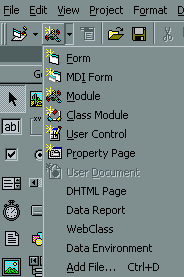
Code for functions can be typed in modules. To add a module to your program, click on the Module button in the pull down menu under Add Module.
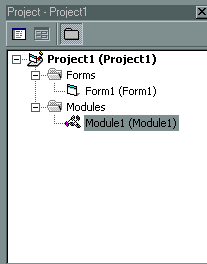
 A module will now appear in your Project Browser.
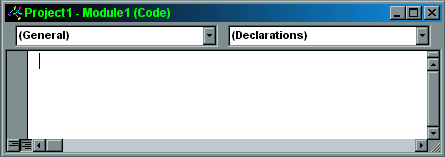
Double clicking on the module will bring up a window where you can enter in code for functions.
Web search engines rely on what are called spiders (sometimes called robots or crawlers). Spiders are programs that crawl through the links of connected web pages. Each spider uses its own algorithm or set of steps to crawl through the web.
A sample algorithm would be:
Termination rules can be when a certain number of hits are reached, a certain amount of time has passed, or a certain number of links have been searched.
Visual Basic 6 comes with a Web Browser control which makes it easy to create a custom web browser.
To add a web browser click on the add form button.
Then click on the Web Browser icon.
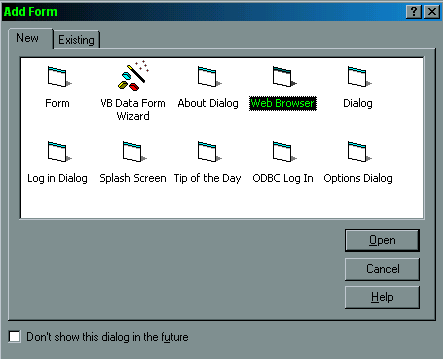
The web browser form comes with a combo box to enter in URLs, a picture box to view a web site in, a toolbar with six buttons, an image list that holds the pictures for the six buttons, and a timer control which is used to display status messages.
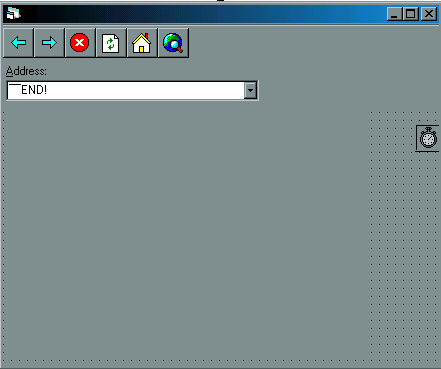
The properties of the buttons in the toolbar can be further customized by setting their enable property.
In the form load event procedure add the following code:
tbToolBar.Buttons("Back").Enabled = False
tbToolBar.Buttons("Forward").Enabled = False
tbToolBar.Buttons("Stop").Enabled = False
tbToolBar.Buttons("Refresh").Enabled = False
In the brwWebBrowser_NavigateComplete2 even procedure, add the following code:
tbToolBar.Buttons("Refresh").Enabled = True
Type the following code at the end of the code window to enable and disable the forward and back buttons when appropr